Understanding Photo Editing Presets for Lightroom
What Are Photo Editing Presets?
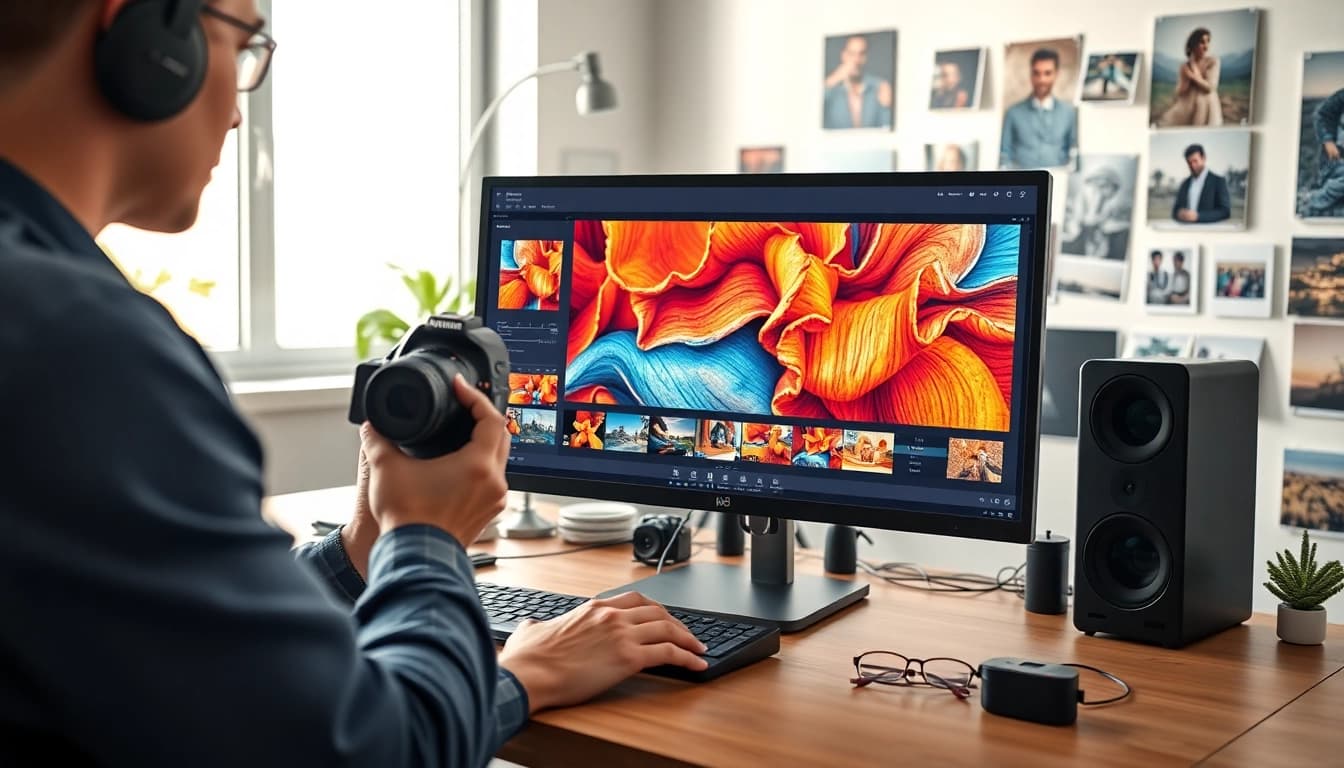
Photo editing presets are pre-defined adjustments and settings loaded into editing software, such as Lightroom, to enhance and modify images effortlessly. Imagine being able to apply an entire suite of edits to your photographs with one click! Presets streamline the editing process by offering a foundation of edits that can be used across multiple photos. This saves time and maintains consistency in your editing style, which is particularly essential for professional photographers and social media influencers aiming for a cohesive aesthetic.
Benefits of Using Presets
The primary advantage of using photo editing presets for Lightroom is the dramatic speed increase they provide for the editing workflow. Beyond efficiency, presets serve several additional benefits:
- Consistency: Utilizing the same adjustments across various images helps to maintain a unified look throughout a project's portfolio.
- Speed: By employing ready-made settings, you can quickly apply intricate edits, allowing you to focus more on creativity rather than technical adjustments.
- Learning Tool: For beginners, presets act as excellent educational tools. Studying how different presets affect an image can help users understand finer photo editing techniques.
- Customizable: Most presets are adjustable, meaning they can be fine-tuned for specific images while providing a solid base.
- Access to Styles: They offer instant access to various artistic styles, allowing users to explore and experiment without starting from scratch.
How to Import and Use Presets in Lightroom
Importing and using presets in Lightroom is straightforward. Here’s a step-by-step guide:
- Open Lightroom and navigate to the Develop Module.
- On the left pane, find the Presets tab.
- Right-click on the Presets tab and select “Import.”
- Locate and select the preset files on your computer, then confirm.
- Once imported, click on any preset to apply it to your photo. Adjust sliders if necessary for optimal results.
Choosing the Right Photo Editing Presets for Your Style
Identifying Your Photography Niche
One of the first steps in selecting the right presets is identifying your photography niche. Whether you specialize in portraiture, landscapes, weddings, or product photography, each genre has specific characteristics that can be enhanced by tailored presets. For example, portrait photographers may prefer warm skin tones and soft highlights, while landscape photographers might seek vibrant colors and dramatic contrasts. Understanding your niche helps you narrow the presets that align with your artistic vision.
Exploring Different Preset Styles
There are countless preset styles available, each offering unique visual aesthetics. Some popular styles include:
- Moody: Ideal for creating a darker, rich atmosphere.
- Light and Airy: Great for brightening images and enhancing soft colors.
- Film Emulation: Mimics the look of classic film photography.
- Black and White: Focuses on contrast and texture against a monochrome palette.
Spending time exploring various preset collections can greatly broaden your editing palette and inspire your photography style.
Testing Presets for Desired Effects
After selecting some presets, the next step is to test them on various images. Different effects can vary depending on the lighting conditions and composition of your photos. When testing, focus on:
- Image Clarity: Ensure that the preset enhances rather than diminishes details.
- Color Balance: Adjust colors to maintain natural skin tones and environmental authenticity.
- Artistic Style: Confirm that the preset aligns with the narrative you want to convey through your images.
Creating Custom Photo Editing Presets for Lightroom
Step-by-Step Guide to Customization
Creating a custom preset allows you to put a personal touch on your images. Follow these steps:
- Open an image in the Develop Module that you've edited and are pleased with.
- Make additional adjustments as needed, including exposure, contrast, hue, and sharpening.
- Once satisfied with the edits, navigate to the Presets panel on the left side.
- Click on the plus (+) icon and select “Create Preset.”
- Name your preset, choose the settings you want to include, and save.
Saving Your Settings as a Preset
To ensure that your unique edits are preserved, save your settings using the above method. You can create numerous presets based on different editing styles, which can be especially useful for moving from one project to another without losing valuable time.
Sharing Custom Presets with Others
Once you’ve created a custom preset, consider sharing it with fellow photographers or even selling it if you feel comfortable. Exporting your presets is simple. Right-click the preset in the Presets panel and choose “Export.” This will create a .lrtemplate file that you can easily share with others, allowing them to use your custom settings in their own Lightroom projects.
Best Practices for Applying Photo Editing Presets
Adjusting Preset Settings for Optimal Results
Even the best presets often require some tweaking. Here are a few best practices:
- Fine-tune Exposure: Adjust exposure settings to account for the original lighting conditions of your image.
- Modify White Balance: Ensure that colors appear natural and true to life. Adjust the temperature and tint sliders as needed.
- Check Details: Look closely at the image for any areas that may need further editing, such as noise reduction or adjustment of specific colors.
Combining Presets for Unique Looks
Merging different presets can lead to innovative and distinctive results. Lightly applying one preset followed by another can create a composite effect that may not exist in a single preset, allowing you to encapsulate your personal style effectively.
Common Mistakes to Avoid in Editing
As you work with presets, it’s crucial to avoid common pitfalls:
- Over-processing: Be wary of applying too many presets or adjustments, leading to unnatural-looking images.
- Ineffective Color Grading: Avoid choosing presets with colors that clash with the subject matter.
- Inconsistent Look: Don't depend entirely on presets. Always assess how they enhance each image rather than using them blindly.
FAQs About Photo Editing Presets for Lightroom
What are the best free presets for Lightroom?
There are many excellent free presets available online. Look for those created by professional photographers or reputable communities to ensure quality and unique styles.
Can I use presets for different photography styles?
Yes, presets can be adapted for various photography styles. However, some adjustments may be necessary to ensure that they complement specific genres.
How do I troubleshoot preset issues in Lightroom?
If a preset isn’t working, ensure you’re using the correct version of Lightroom. Restarting the software can also resolve common glitches.
Are there any adjustable settings in presets?
Yes, presets can be modified after applying them. You can adjust settings like exposure, contrast, and colors to suit your individual preferences.
How can I create a themed look with presets?
To create a themed look, choose presets that share a color palette or mood. Mix and match presets to complement each other for a cohesive visual story.